Task 3 - Dynamic Network Visualization
Cytoscape_to_Dinar.R script to prepare the network.Option 1 - Importing a Custom Network into DiNAR with Cytoscape_to_Dinar
corkoak.results obtained in Task 1 - Plant Data Annotation, and usefull information from the Ensembl Plants database.Node Table Example (.csv):
geneID |
|---|
CFP56_57155 |
CFP56_18234 |
CFP56_55251 |
… |
Note
This column is mandatory in the first position and must have gene/protein IDs. Additional columns can be present.
Edge Table Example 1 (.csv):
geneID1 |
geneID2 |
reactionType |
|---|---|---|
CFP56_57155 |
CFP56_18234 |
coexpressed_with |
CFP56_57155 |
CFP56_55251 |
coexpressed_with |
… |
… |
… |
Edge Table Example 2 (.csv):
name |
interaction |
|---|---|
CFP56_57155 (interacts with) CFP56_18234 |
interacts with |
CFP56_57155 (interacts with) CFP56_55251 |
interacts with |
… |
… |
Note
The corkoak_node.csv and corkoak_edge.csv, present in the CorkOak_UseCase_Data-main folder, already conform to this format.
- Open the command line (Command Prompt) and run
Cytoscape_to_Dinar.RFor a detailed usage of this script, go to Cytoscape_to_Dinar Usage.#Don't forget to replace the PathToFolder section with the Directory where the CorkOak_UseCase_Data-main Folder is located Rscript PathToFolder/Cytoscape_to_Dinar.R -n corkoak_node.csv -e corkoak_edge.csv -c corkoak.results.txt -o corkoak
After running the script, the output files should look like the following:
DiNAR Ready Node Table
corkoak_dinar_node.txt:
geneID |
shortName |
shortDescription |
MapManBIN |
clusterID |
x |
y |
clusterSimplifiedNodeDegree |
expressed |
|---|---|---|---|---|---|---|---|---|
CFP56_57155 |
POF01545.1 |
- |
21.4.1.1.2.2_Cell wall organisation.cell wall proteins.hydroxyproline-rich glycoprotein activities.arabinogalactan-protein activities.Fasciclin-type arabinogalactan protein activities.Fasciclin-type arabinogalactan protein *(FLA11) |
1 |
20.0223811911811 |
7.2089051057372 |
12 |
1 |
CFP56_18234 |
POE85887.1 |
- |
21.2.2.1.3.2_Cell wall organisation.hemicellulose.xylan.biosynthesis.xylosyltransferase activities.xylosyltransferase *(IRX10) |
1 |
24.1097974399641 |
9.36531030251287 |
10 |
1 |
CFP56_55251 |
POE60447.1 |
- |
21.1.2.2_Cell wall organisation.cellulose.cellulose-hemicellulose network assembly.regulatory protein *(COB) |
1 |
18.0888090500896 |
6.01548035406399 |
12 |
1 |
… |
… |
… |
… |
… |
… |
… |
… |
… |
DiNAR Ready Edge Table
corkoak_dinar_edge.txt:
geneID1 |
geneID2 |
reactionType |
clusterID_geneID1 |
clusterSimplifiedNodeDegree_geneID1 |
clusterID_geneID2 |
clusterSimplifiedNodeDegree_geneID2 |
exists |
|---|---|---|---|---|---|---|---|
CFP56_57155 |
CFP56_18234 |
coexpressed_with |
1 |
12 |
1 |
10 |
1 |
CFP56_57155 |
CFP56_55251 |
coexpressed_with |
1 |
12 |
1 |
12 |
1 |
… |
… |
… |
… |
… |
… |
… |
… |
With the tables ready, jump to the following Main DiNAR section.
Option 2 - Preparing a Custom Network into DiNaR (from other sources)
Alternatively, to import a custom network into DiNAR and avoid the Cytoscape_to_Dinar.R script, a node and edge tables should be supplied following a specified tabular structure, which must be firstly processed with the DiNaR preprocessing subApp. The table formats necessary for this option are the following:
Node Table Example (before DiNAR preprocessing):
geneID |
shortName |
shortDescription |
MapManBin |
|---|---|---|---|
CFP56_57155 |
- |
- |
- |
CFP56_18234 |
- |
- |
- |
CFP56_55251 |
- |
- |
- |
… |
… |
… |
… |
Edge Table Example (before DiNAR preprocessing):
geneID1 |
geneID2 |
reactionType |
|---|---|---|
CFP56_57155 |
CFP56_18234 |
coexpressed_with |
CFP56_57155 |
CFP56_55251 |
coexpressed_with |
… |
… |
… |
Open the DiNaR preprocessing subApp and select the tables option tab
Click Choose Nodes File and select a input node table
Click Choose Edges File and select a input edge table
Press Go!
In the Nodes Tab, click Download (button under the node table). It should look like the following:
geneID |
shortName |
shortDescription |
MapManBIN |
clusterID |
x |
y |
clusterSimplifiedNodeDegree |
expressed |
|---|---|---|---|---|---|---|---|---|
CFP56_57155 |
- |
- |
- |
1 |
18.8867566488289 |
7.80493942833234 |
12 |
1 |
CFP56_18234 |
- |
- |
- |
1 |
21.8082235670472 |
6.47746918475539 |
10 |
1 |
CFP56_55251 |
- |
- |
- |
1 |
22.2041564614846 |
13.1541499502343 |
12 |
1 |
… |
… |
… |
… |
… |
… |
… |
… |
… |
In the Edges Tab, click Download (button under the edge table). It should look like the following:
geneID1 |
geneID2 |
reactionType |
clusterID_geneID1 |
clusterID_geneID2 |
clusterSimplifiedNodeDegree_geneID1 |
clusterSimplifiedNodeDegree_geneID2 |
exists |
|---|---|---|---|---|---|---|---|
CFP56_57155 |
CFP56_18234 |
coexpressed_with |
1 |
1 |
12 |
10 |
1 |
CFP56_57155 |
CFP56_55251 |
coexpressed_with |
1 |
1 |
12 |
12 |
1 |
… |
… |
… |
… |
… |
… |
… |
… |
With the tables ready with this alternative method, we can then import them into DiNAR.
Video guide for DiNaR preprocessing subApp
Importing a Custom Network into the Main DiNaR App
Go to the DiNaR App
In select network, choose Custom network
In Upload nodes table, select the
corkoak_dinar_node.txtfileIn Upload edges table, select the
corkoak_dinar_edge.txtfileIn Upload Experimental data files, select the
corkoak_LogFC_April.txt,corkoak_LogFC_June.txtandcorkoak_LogFC_July.txtfilesClick the Files selection and order box → press backspace twice → select
corkoak_LogFC_Juneand thencorkoak_LogFC_JulyClick Proceed!
Exploring DiNaR network visualization options
Click the Cluster Information Tab, and select the MapMan BINs option
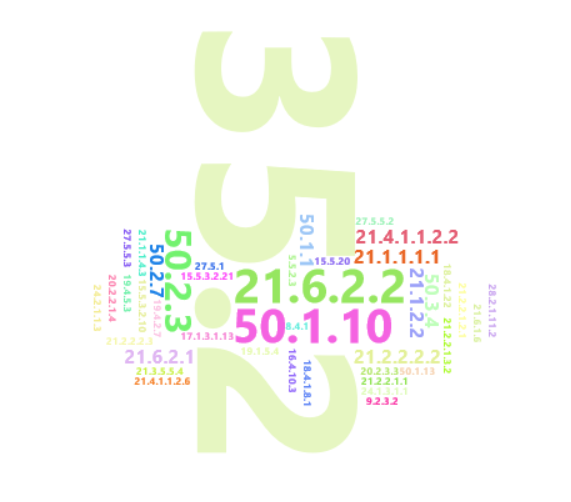
Creating a dynamic network visualization
Note
Larger amounts of experimental data allows the user to create longer and richer dynamic network visualizations in DiNAR.
Click the Differential expression per cluster Tab, and select the Dynamic-animatoR option
Scroll down and, under the Select speed option, click on the video speed 1
Note
Different speed settings can be used to obtained visualizations which go faster (speed 1) or slower (speed 0.1) throughout multiple conditions/timepoints.
Click Create dynamic.html
After a couple seconds (depending on network size), click Download dynamic.html
Open the .html file and click the
 starting video symbol
Cork Oak Dynamic Network Visualization:
Video guide for DiNaR App
Now, if ready, the user can move into the next and final Task 4 - Ensembl Plants Query, which will help in the retrieval of information from the Ensembl Plants database from the command line.
Getting Node and Edge Tables from Cytoscape
Cytoscape is a widely used tool for network analysis and visualization. This section will guide the user on how to obtain node/edge tables to be imported into DiNAR using the Cytoscape_to_Dinar.R script.
In Cytoscape, select the desired network
Click the Node Table tab
Select the Export Table to File… option, saving it in the default (.csv) format

Click the Edge Table tab
Select the Export Table to File… option, saving it in the default (.csv) format

Note
Both node and edge tables can be retrieved from several databases or retrieved from other network visualization tools, as long the structure remains DiNAR compatible.
Rscript Usage:
Rscript PathToFile/Cytoscape_to_Dinar.R [-n] node_table.csv [-e] edge_table -c corkoak.results -e species_name -o output_name
[-n] node table- Input a Node Table (.csv, comma-separated)
[-e] edge table- Input a Edge Table (.csv, comma-separated)
[-c] custom annotation- Input gene/protein annotations obtained in Mercator4 / mercator.results (optional)
[-e] ensemblplants- Retrieve short names, short descriptions and orthologs from the Ensembl Plants database (optional)
[-o] output- Specify a name for the output node and edge tables
Warning
Do not forget to specify the path for the directory where this script is located (CorkOak_UseCase_Data-main). This should also be the folder with the corkoak_node.csv, corkoak_edge.csv and corkoak.results.txt files.
DiNAR Output Examples
The following visualizations were obtained from a Arabidopsis thaliana network showcasing gene expression in multiple timepoints after Pseudomonas syringae infection (described here).
Example 1 - Interactive Visualization Option (.html format)
This option allows the user to click nodes and edges of the network to check their summarized information, and highlights the expression tendencies of specific genes throughtout the course of infection response.
Example 2 - Video Option (.mp4 format)
Cytoscape_to_Dinar.R script.